 by
by Wireless networks have undoubtedly become the absolute lifeline of our modern digital age. Whether we are working remotely from a home office, streaming high-definition entertainment, playing competitive online games, or simply communicating with family across the globe, a stable WiFi connection is essential. We connect our smartphones, smart TVs, laptops, and IoT (Internet of Things) devices to these networks once and completely forget about the credentials.
However, it can be incredibly frustrating to forget the password of a network you previously joined, especially when you desperately need it. Fortunately, the Android operating system has evolved significantly over the years, simplifying the process of recovering these saved credentials without compromising device security. In this comprehensive tutorial, we will dive deep into every possible method to view stored WiFi passwords on your Android smartphone, covering basic solutions for everyday users as well as advanced techniques for those with rooted devices.
Why Would You Need to Check a Saved WiFi Password?
Before we jump into the “how,” let’s explore the “why.” There are numerous everyday scenarios where digging up a saved network password on your smartphone becomes an absolute necessity:
- Linking Secondary Devices: You just bought a new tablet, smart TV, or gaming console, and you need to connect it to your current home network, but the router is too far to check the sticker.
- Hosting Guests: A visiting friend, family member, or colleague asks for your WiFi password, and you realize you haven’t typed it out in months or even years.
- Upgrading Your Phone: You are transferring your digital life from an old smartphone to a newly purchased device and want to ensure all your previous network credentials move over smoothly.
- Recovering Lost Details: You customized your home network password to something highly complex for security reasons, completely forgot it, and now find yourself locked out on a new device.
- Troubleshooting Network Issues: You are experiencing internet connectivity problems and need to double-check if the password saved in your device matches the one configured on your router’s admin panel.
Regardless of your specific situation, the Android ecosystem provides multiple, highly effective ways to help you retrieve this information.
1. Utilizing the Native QR Code Tool (No Root Needed)
For the vast majority of users, this is the easiest and most accessible method. Beginning with Android 10 and carrying over into all newer versions, the operating system introduced a fantastic feature that lets users reveal network credentials via a simple, scanable QR code.
Step-by-Step Guide:
- Unlock your smartphone and launch the native Settings application.
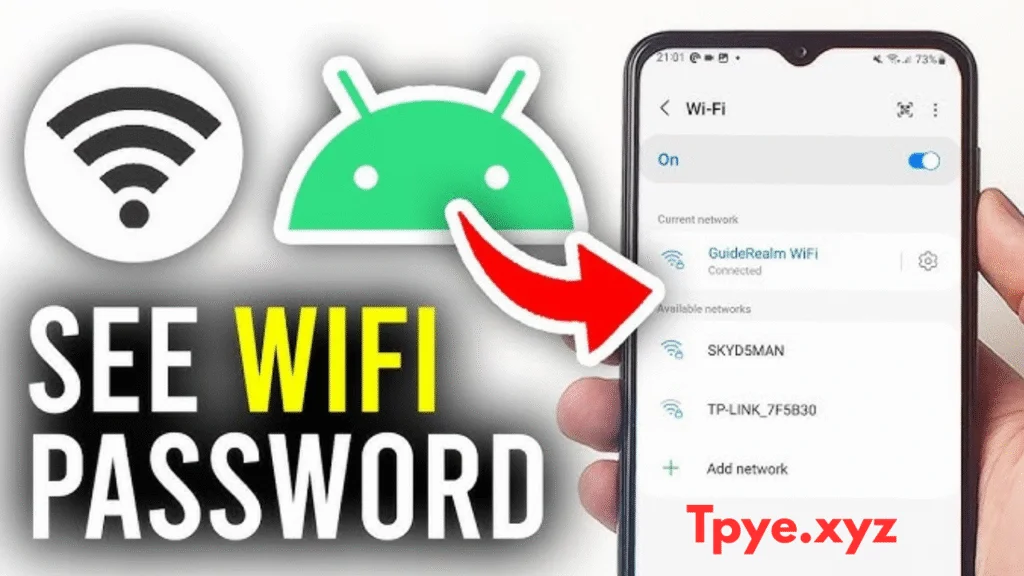
- Navigate to the “Network & Internet” or “Connections” menu, and then select “Wi-Fi.”
- Tap on the specific wireless network you are currently linked to (or tap the gear/settings icon next to its name).
- Locate and press the “Share” option, which is typically marked by a small QR code symbol.
- For security purposes, Android will ask you to verify your identity. You can do this via facial recognition, a fingerprint scan, or by entering your device PIN/pattern.
- A large barcode will be generated on your screen. In most modern Android versions, the actual password text will be clearly displayed directly underneath this QR code.
Pro-Tip (The Google Lens Trick): If you are using a smartphone with a heavily customized user interface (like older versions of MIUI, ColorOS, or FunTouch OS), the phone might display the QR code without showing the text password below it. If this happens, simply take a screenshot of that QR code. Open the Google Photos app or Google Lens, select the screenshot, and let Google scan it. It will instantly translate the QR code and reveal the text password for you!
2. Accessing Google Password Manager
If you have tied your smartphone to a Google account (which almost all Android users do) and have enabled data synchronization, your device automatically backs up network credentials to the cloud. You can easily recover them via the cross-platform Google Password Manager.
Step-by-Step Guide:
- Launch any modern web browser (like Google Chrome, Firefox, or Edge) on your phone or a computer.
- Navigate to the official portal: passwords.google.com.
- Securely log into the exact same Google account that is linked to your Android smartphone.
- Once the dashboard loads, type the specific name of your WiFi network (the SSID) into the provided search field at the top of the page.
- Select the correct network entry from the search results.
- Google will prompt you to verify your identity once more through two-factor authentication, an authenticator app, or a screen lock prompt sent to your phone.
- After verification, click the small “eye” icon next to the hidden password, and the stored network key will become visible.
This technique is incredibly highly effective for users who synchronize their digital data across multiple gadgets using Google’s robust ecosystem. It even works if your phone is broken, as long as you can access a computer.
3. Exploring System Files with a Root Manager (Requires Root)
For power users who have rooted their Android devices, the operating system opens up entirely new possibilities. When you connect to a WiFi network, Android stores the password in a highly secure, hidden text file deep within the system partition. Root access allows you to bypass these restrictions.
Step-by-Step Guide:
- Download and install a specialized, root-capable file browser application such as Solid Explorer, Root Explorer, or FX File Explorer.
- Open the app and grant it Superuser (Root) permissions when prompted.
- Navigate to the absolute root directory of your device, and follow this specific folder path:
/data/misc/wifi/ - Within this folder, look for a file named either
WifiConfigStore.xmlorwpa_supplicant.conf(the exact name depends on your specific Android version). - Open this file using the app’s built-in text editor.
- Browse the document for the network you are trying to find. The file contains every network your phone has ever joined. Look for formatting similar to this:
ssid=”YourNetworkNameHere”psk=”YourPasswordHere”
This strategy is exceptionally powerful because it allows you to uncover the keys for every previously joined network, rather than just the one you are currently connected to.
Strict Caution: Gaining root access involves modifying core system files, which can immediately void manufacturer warranties and expose your smartphone to severe security vulnerabilities or malicious apps. Only attempt this method if you are technically proficient and understand the associated risks.
4. Executing ADB Commands via Computer (Root Might Be Needed)
The Android Debug Bridge (ADB) is a powerful developer tool that grants you the ability to manage and command your smartphone directly from a PC terminal. When properly configured, it can be utilized to pull saved network details without needing to install file explorer apps on the phone itself.
What You Will Need:
- A desktop PC or Mac equipped with ADB and Fastboot tools installed.
- The “USB Debugging” feature turned on within your phone. (To do this, go to Settings > About Phone > Tap “Build Number” 7 times to unlock Developer Options. Then, go to Developer Options and toggle on “USB Debugging”).
- A high-quality, data-compatible USB cable.
Step-by-Step Guide:
- Plug your smartphone into your computer using the USB cable. Ensure you select “File Transfer” or grant the USB debugging prompt on your phone screen.
- Launch the Terminal application (if you are on macOS or Linux) or Command Prompt / PowerShell (if you are on Windows).
- Type the command
adb devicesand press Enter to verify the connection. You should see a random string of numbers indicating your phone is recognized. - Next, input these commands sequentially, pressing Enter after each one:
adb shellsu(This command requests superuser access and is applicable only for rooted phones. You will need to grant permission on your phone screen).cat /data/misc/wifi/WifiConfigStore.xml
- A massive wall of text will appear in your command window. Scan the output text for the terms “SSID” and “preSharedKey” to identify the exact passwords and their corresponding network names.
Note: Android’s strict system-level security permissions often block this specific read command on devices that haven’t been rooted, returning a “Permission Denied” error.
5. Logging Into Your Router’s Dashboard
If your Android device is still currently connected to the local network (but you just want to know the password to give to someone else), you can bypass the phone entirely and uncover the password by directly accessing your router’s administrative control panel.
Step-by-Step Guide:
- Launch any internet browser on your PC or mobile device that is connected to the network.
- Enter the default gateway IP address of your router into the URL bar. If you don’t know it, standard addresses are typically:
192.168.0.1192.168.1.1192.168.100.1
- You will be greeted by a login screen. Sign in with the router’s administrator credentials. (Important: This is not your WiFi password. These admin credentials are frequently found printed on a physical sticker underneath or on the back of the router itself—often ‘admin’ for both username and password).
- Once logged into the dashboard, navigate through the menus to find a section labeled “Wireless Security,” “WLAN Settings,” or “Network Settings.”
- Locate the specific field displaying the network security key, passphrase, or WiFi password. You may need to check a box that says “Show Password” to reveal the hidden characters.
This serves as an excellent, foolproof alternative if extracting the data directly from your smartphone’s system files proves unsuccessful.
6. External Applications (Generally Require Root)
If you search the Google Play Store, you will find a plethora of applications that advertise the ability to display stored network keys. However, it is crucial to understand that the vast majority of these apps fundamentally rely on root privileges to function properly.
Popular Examples Include:
- WiFi Password Viewer
- WiFi Key Recovery
- Router Setup Page (This one helps find the router IP mentioned in Method 5 without root).
These programs operate by automating the process described in Method 3. They extract the raw information from restricted system directories and present it to you in a clean, easy-to-read list format. Therefore, they are practical only on hardware that has already been rooted.
Security Warning: Always exercise extreme vigilance when allowing apps to access root permissions. Malicious apps with root access can steal sensitive data. Ensure you are downloading exclusively from reliable platforms like the Google Play Store, check the reviews carefully, and review exactly what permissions the app demands before installing.
FAQs About Retrieving Android WiFi Passwords
Is root access strictly mandatory to view network passwords?
Absolutely not. As detailed in the first method, devices running Android 10 or later include a highly convenient native QR code sharing tool that explicitly reveals the text password without requiring any system modifications or root access whatsoever.
Are external password-revealing apps secure and safe to use?
You should always proceed with extreme care. Because these apps require deep system access to function, only install highly-rated applications from trusted, verified developers. Carefully review any system permissions they demand—a WiFi viewer app has no legitimate reason to access your microphone or SMS messages, for example.
Is it possible to recover keys for older, previously joined networks from months ago?
Yes, absolutely. Provided the specific connection profile hasn’t been manually deleted (using the “Forget Network” option) and your device hasn’t undergone a complete factory data reset, the Android system retains a memory of those credentials deep in its storage.
Can these methods retrieve credentials for public hotspots or hotel networks?
Yes, they can. If a public network required a standard WPA2/WPA3 password and your device successfully saved those connection details at the time of access, they will be visible using methods like the Root Explorer or ADB. However, this does not apply to networks that use web-based captive portals (where you log in via a browser page) without a standard network key.
Methods Overview & Quick Comparison
If you are in a rush, below is a brief, easy-to-read comparison of the various techniques available for accessing network keys on Android smartphones:
| Method | Root Requirement | Technical Difficulty | Reliability | Best For |
| QR Code Sharing | No | Very Easy | High | Everyday users on modern phones |
| Google Password Manager | No | Easy | High | Users who sync data to Google |
| Root File Explorer | Yes | Advanced | Very High | Tech-savvy users wanting all saved keys |
| ADB Commands | Sometimes | Advanced | Varies | PC users comfortable with terminal commands |
| Router Web Interface | No | Medium | High | Finding the password without relying on the phone’s memory |
| Third-Party Apps | Yes (mostly) | Medium | Varies | Root users who prefer an automated list |
Conclusion
Retrieving a stored wireless password on an Android device is no longer the complex, frustrating technical ordeal it used to be a decade ago. Thanks to smart, integrated utilities such as the Google Password Manager and the incredibly useful native QR code generation feature, everyday users can effortlessly recover their network details in a matter of seconds without any specialized knowledge.
For advanced users and tinkerers equipped with rooted smartphones, the operating system remains open enough to grant access to an even broader set of deep-level recovery tools like system file explorers and ADB terminal commands. Ultimately, whether you are configuring a brand-new smart home gadget, assisting a visiting guest, or simply trying to organize your digital data, mastering these diverse methods ensures you maintain total, uninterrupted command over your internet connectivity.